Finding your way around the screen
Four areas, always the same
Whatever screen is showing, the window always reads the same way. Once you have spotted these four areas, you will never be lost again.
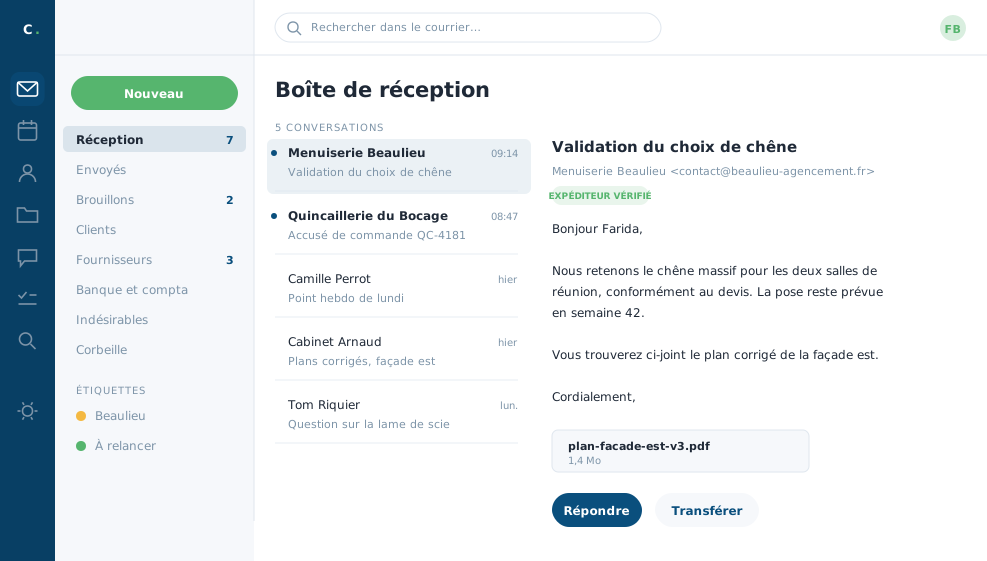 The inbox: the tool bar on the left, the folders,
the message list and the open message.
The inbox: the tool bar on the left, the folders,
the message list and the open message.
The tool bar, on the far left, is the narrow column of icons: mail, calendars, contacts, files, team messages, tasks, search and settings. It is the only place from which you switch tools.
The folder column, right beside it, shows what exists inside the open tool: your mail folders, or your calendars, or your address books as the case may be.
The central area is where everything happens: the list of messages and, beside or below it, the one you have opened.
The space used, at the foot of the tool bar, shows what your messages and files take up out of the space allocated to you.
A word about the browser
The browser's Back and Forward buttons work, but avoid using them: the tool has its own arrows, which are safer. Avoid reloading the page while you are writing, too, or you may lose the message in hand.
Lost? Click the envelope at the very top of the tool bar. You are back in your inbox, wherever you had strayed.
In closing
Four areas, always the same, whichever tool is open. Once you have them, you will never be lost again, and the rest of this course simply goes into the detail of each.
Commenting is not enabled on this course.