The Search screen
Finding again, rather than filing
The search bar at the top looks inside the open tool: in the mail if you are in the mail, in the contacts if you are in the contacts. Type a word, confirm, and the results appear as a list.
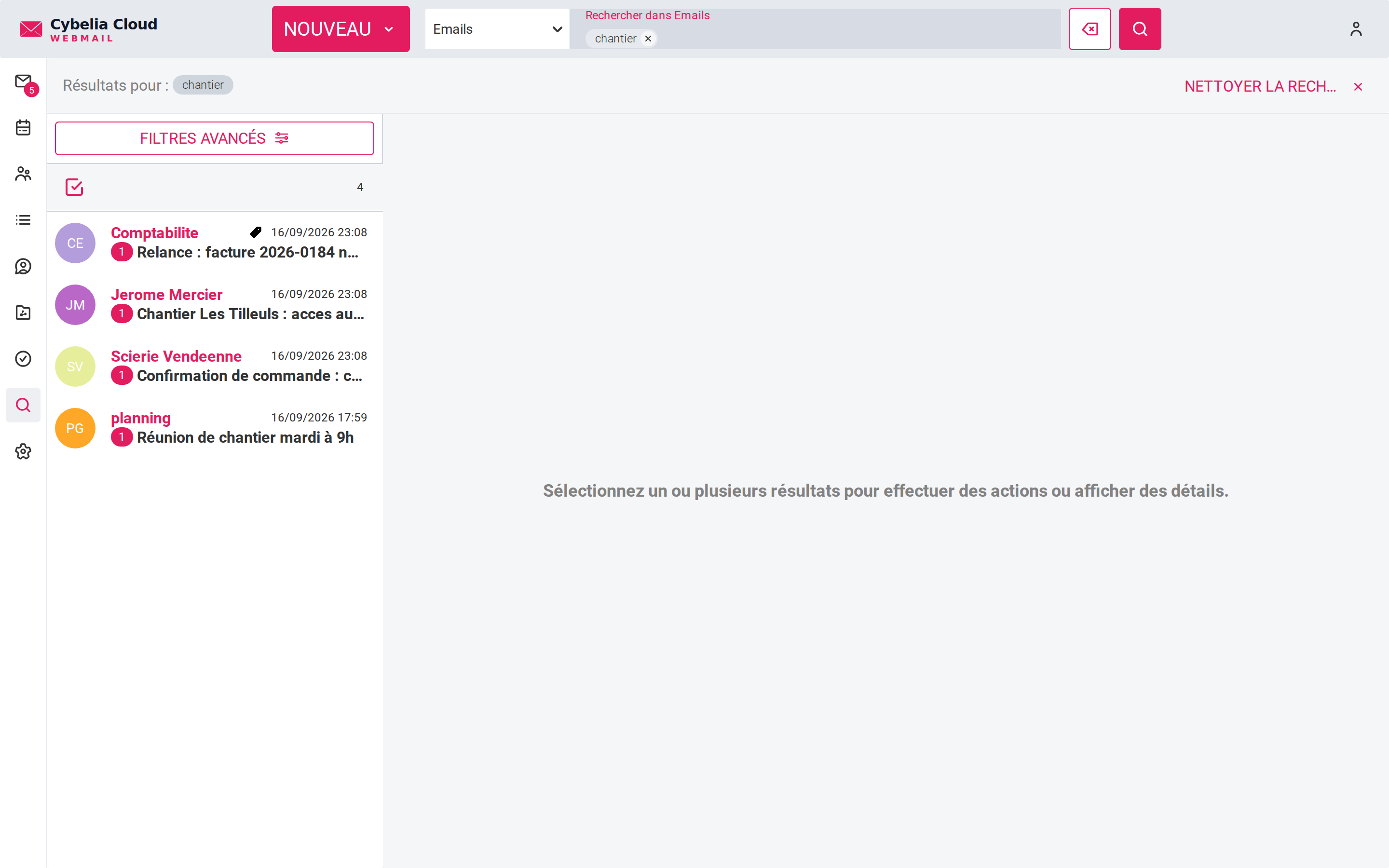 One word searched, the results on the left, and advanced filters one click away.
Advanced search
The magnifier icon in the tool bar opens a screen of its own. The Advanced filters button offers to combine criteria: the sender, the recipient, a word from the subject, a period, the presence of an attachment and its type, the size, the tag, or one particular folder. You stack them, then run the search.
Shortcuts worth knowing
You can also type keywords straight in: from:kramp for
everything from that supplier, subject:quote for the subject,
in:sent for a folder, has:attachment for what
carries one. They combine: from:kramp has:attachment gives the
supplier's messages that have a document.
Two rules that save surprises
Search looks for the exact word: "handle" will not find "handles". The
asterisk widens it, handl* finds both. Capital letters, on the
other hand, make no difference. And the content of readable attachments, such
as PDFs, is searched too: a quote number is found even when it appears only
inside the attached document.
Search first, file afterwards. Nine times out of ten, finding a message takes less time than deciding where to put it did six months earlier.
In closing
Searching costs less than filing. Three words and a date range nearly always find what ten well-named folders would have taken a quarter of an hour to organise.
Commenting is not enabled on this course.