The help centre and the explanation bubbles
"Help centre" page
Three tabs, and a discreet button at the top right that is worth the visit on its own.
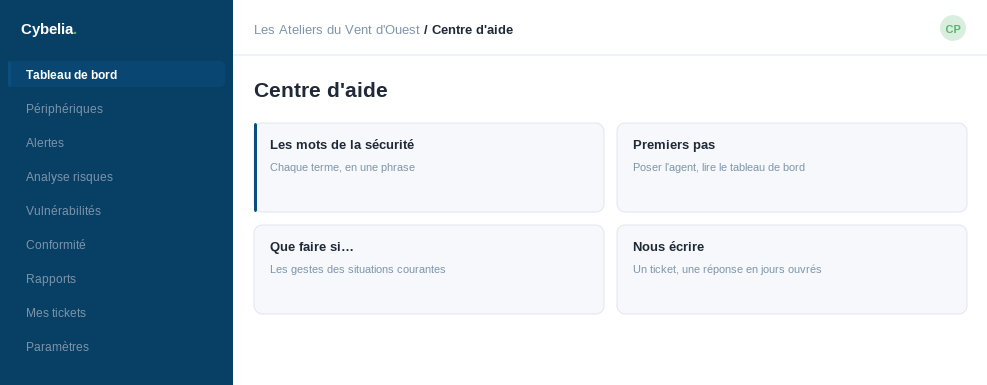 The help centre: the words, the first steps, and what to do if.
The "?" button
It switches on contextual help mode. Once lit, every technical term in the portal becomes underlined: hover over it to see its definition, right where the word appears, without leaving the screen.
This is the setting to turn on from day one and leave on for a month. Then you switch it off once the words have become familiar, and switch it back on the day you open a page you do not know.
Three tabs
Training: a module-by-module course, each with objectives, the principle, how it translates into the matching screen, practical exercises, the pitfalls, and a short knowledge check. A button opens directly the page the module talks about.
Quick questions: answers to the questions that come up most often.
Glossary: every term, sorted by family, concepts, tool families, attacks, defence, compliance, standards, with a free search. These are exactly the definitions in the bubbles.
Your progress is kept in the browser, for your account. You mark a module as finished and you find your place again. A button lets you reset everything if you want to start over.
When that is not enough
The page offers to request a guided demonstration and reminds you of the support team's hours: Monday to Friday, 9 am to 6 pm. Nobody will leave you stuck in front of a screen.
In closing
The contextual help button is worth this lesson on its own: it underlines technical terms where they appear, without leaving the page. Turn it on for the first few weeks; you will turn it off by yourself.
Commenting is not enabled on this course.