Writing a message
The New button
The New button, at the top of the list, opens a writing window. Three fields are enough: the recipient, the subject, the message. Click Send: a copy is kept in the Sent folder, so you can always show what you wrote.
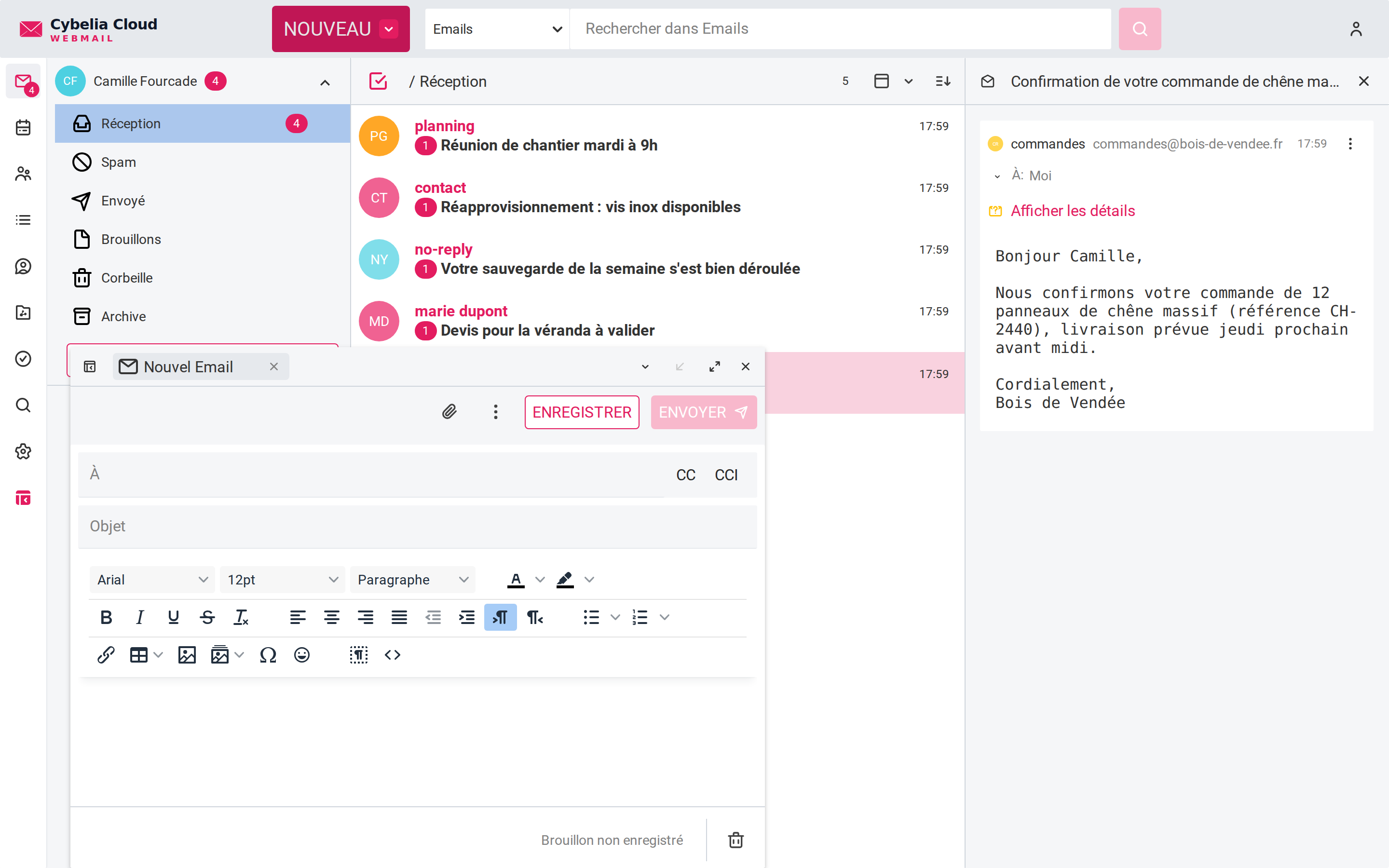 The writing window: recipients, subject,
attachment and signature.
From the first letters typed into the recipient field, the tool offers your contacts' addresses, matching first name, surname or address. Pick from the list rather than typing the address in full: that is where you avoid the typing slips that send a message straight back.
Copy and blind copy
The Cc and Bcc buttons add their fields. Copy in those it concerns without expecting a reply. Use blind copy when writing to thirty customers at once: each receives the message without seeing the other twenty-nine addresses, which is plain courtesy and an obligation towards their personal data.
Attaching a file
The paperclip icon offers to take a file from your computer or from your file space. You can also drag the file straight into the window. For a drawing that is too heavy, the tool offers to send it as a link: the recipient downloads it, and your message stays light.
Formatting and drafts
The formatting bar allows bold, italic, colours and lists. If you close the window before sending, the tool offers to keep a draft: you find it in the folder of that name and pick it up again with a double click.
Reply to all is the classic mail trap. Before clicking, look at the list of recipients: if your answer concerns only the sender, reply to them alone.
In closing
Three fields are enough, and a copy always stays in Sent. It is that copy that makes the difference on the day a customer claims to have received nothing.
Commenting is not enabled on this course.